ACS COMPUTER CENTER

140/A, Kahatowita, Nittambuwa, Srilanka , 11144

.Menu bar

Acs Computer center for your IT related works - We provide excellent services to our custormers for very cheapest rate

Quality training

For today's and tomorrow's technology.
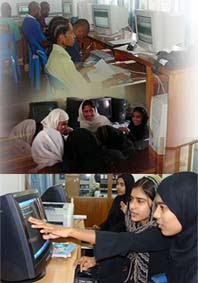
Computer Institute is committed to customer satisfaction. In the past 05 years ( SINCE 2006 ) , we have created a very friendly learning environment with the latest computer hardware and software technologies. Whether you are new to the computer industry or are looking to improve your skills, we have the right course for you. Well-qualified, experienced certified instructors train the participants with easy-to-use step by step training material in the most optimized period of time. We provide Unlimited Practical hours to Our Students.

10.Graphics A) Putting Images On A Page

Putting Images On A Page
On almost EVERY web page on the net, there is some kind of graphic. I would HIGHLY RECOMMEND that you have AT LEAST one picture on your page. There are mainly two kinds of ways to have graphics on your web page. The first, is to use a graphic that is on another web page somewhere on the web. The second, is to upload the graphic to your own account. Personally, I prefer to use the upload method. If you are using the other way, there is always a chance that the person who made that page will decide to delete that graphic. Then a symbol with a circle, square, and triangle will appear where the graphic was supposed to be, sometimes it will look like it has been torn through the middle:


1)
To display a graphic on some one else's page, you need to find the URL. To do this, I recommend that you have Netscape Navigator. Right click or click and hold down on the graphic, until a menu comes up. Choose "View this Image". Then , copy the URL that appears at the top of the screen, in the "location" box. Let's say that the URL was: http://www.infhost.com/members/web/Images/pic.gif You would type:
<IMG SRC="http://www.infhost.com/members/web/Images/pic.gif">

The result is:


2)
To display a graphic that is in your account, all you have to do is type in the filename. If you didn't make separate directories for graphics and pages, then you just need to type the graphic's name.(i.e. <IMG SRC="pic.gif">

Alternate Text for Images
Some World Wide Web browsers cannot display images. Some users turn off image loading even if their software can display images (especially if they are using a modem or have a slow connection). HTML provides a command to tell readers what they are missing on your pages. The "ALT" attribute lets you specify text to be displayed instead of an image. For example:


<IMG SRC="pic.gif" ALT="How to make a web page">

In this example, "pic.gif" is the picture of a sign. With graphics-capable viewers that have image-loading turned on, you see the graphic. With a non-graphic browser or if image-loading is turned off, the words "How to make a web page" is shown in your window. You should try to include alternate text for each image you use in your document, as it is a courtesy for your readers.


09. Linking

URLs
When you make a link, you are making colored text or even a graphic (talked about later). When somebody clicks on this text, it will take them to another web page, or possibly a certain section of a web page. Let's say that you wanted to make a link from your web page, to Yahoo!. The URL of Yahoo! is:
http://www.yahoo.com

To do this, you would type:
<A HREF="http://www.yahoo.com">What ever text that you want to be colored goes here</A>

The result would be:
What ever text that you want to be colored goes here
You can go ahead and try it if you want to.

Links to Specific Sections
Sometimes, you might want to have a link that will take you further down a page, or to a certain section of another page. An example of this is the index to this web page. You click on the colored text, and it takes you to that section. To do this, you need to do two things. The first, is to make the link, and the second, is to make where the link will lead to. NOTE: You cannot make links to specific sections within a different document unless either you have write permission to the coded source of that document or that document already contains in-document named links.

1) To make the actual link, think of a name for the certain spot. Let's say you are going to call it "spot". If this certain spot is on the same page that the link is, you would type:
<A HREF="#spot">Colored Text
Otherwise, you would add "#spot" to the end of the URL.

2) Now, you need to make where the link will take you. Go to the spot where you want the link to take you, and type:
<A NAME = "spot">
Mailto Links
Most people like to have a link on their web page that automatically sends e-mail to an address. If you want to do this, and your name is Dan, and your e-mail address is a@a.com, type:
<A HREF="mailto:a@a.com">Dan</a>
Here is the result of typing this:
Dan

08. Text - F) Character formatting

Character Formatting
You may want to format some of your text differently than others using text styles. There are several types of styles of text that you can use: bold, italic, underline, strikeout, superscript, subscript, teletype, and blinking text are examples. To do these styles, surround your text with the following commands:


<b>, </b> for bold

<i>, </i> for italic

<u>, </u> for underlined

<strike>, <strike> for strikeout

<sup>, </sup> for superscript

<sub>, </sub> for subscript

<tt>, </tt> for teletype

<blink>, </blink> for blinking text (very annoying)

07. Text - E) Horizontal Line

Horizontal Rules
Every now and then, you might want to have a horizontal rule, or line in your page. Horizontal rules can be many different sizes and lengths. You can also have the line be solid black, by typing NOSHADE. Here are several examples of sizes and widths, and what the outcome is:
<HR SIZE=1 WIDTH=100%>

<HR SIZE=5 WIDTH=50%>

<HR SIZE=25 WIDTH=75%>

<HR SIZE=3 WIDTH=100%>

<HR NOSHADE SIZE=1 WIDTH=100%>

<HR NOSHADE SIZE=3 WIDTH=100%>

<HR NOSHADE SIZE=10 WIDTH=20%>

06. Text - D) Forced Line Breaks

There are many cases in which you want to end typing on one line, and start on the next. To do this, you can use a simple HTML command. This is one of the few commands that you don't have to put an ending command on. Let's say that you wanted to say "Hello, how are you?", but with each word on a separate line. All you have to type is:
Hello,<BR>how<BR>are<BR>you?
The outcome is:
Hello,
how
are
you?

05. Text - C) Builts and Numbering

There are two types of lists that you can make in HTML, dotted, and numbered. To make a dotted list of: red, orange, green, blue, purple, black, and brown, type:
<UL>
<LI> red
<LI> orange
<LI> green
<LI> blue
<LI> purple
<LI> black
<LI> brown
</UL>

The result is:
• red
• orange
• green
• blue
• purple
• black
• brown
To make a numbered list of: red, orange, green, blue, purple, black, and brown, type:


  1. red
  2. orange
  3. green
  4. blue
  5. purple
  6. black
  7. brown


The result looks like:
1. red
2. orange
3. green
4. blue
5. purple
6. black
7. brown

04. Text - b) Paragraph

Whenever you have more than a sentence of writing, you should have paragraphs.
To Make a paragraph of "This is a web page. How do you like what I've done? Please e-mail me with any suggestions at a@a.com", type:
<P>This is a web page. How do you like what I've done? Please e-mail me with any suggestions at a@a.com</P>
The outcome is:
This is a web page. How do you like what I've done? Please e-mail me with any suggestions at a@a.com

CRICKET SCORE

Paid Advertisement

Paid Advertisement

We provide